Computer Based Test Software Exam Engine
Module: Exam Modes
CBT Software-Exam Engine allows candidate to use
the Test Module in two modes
1. Learn Mode : Provides interactive
learning environment where candidate can go through
each question and view flash cards and correct answers
for each question.
2. Exam Mode : Simulates actual
exam environment in which candidate needs to answer
exam created by instructor in a given time without any
help from flash cards.
Once the candidate has logged in using a login name
he/she is presented with a "Mode" screen (shown below).
In this screen candidate can select if he/she want to
view question in learn mode (for learning purpose) or
in Exam mode (simulate exam environment).

Following are the features provided in "Mode" screen:
1. Learn Mode : To start exam in learn mode select
"Learn Mode" option under "Select Exam Mode" section
and click on "Next". In next screen "Settings" candidate
will be presented with various configuration options
available for learn mode as shown below:
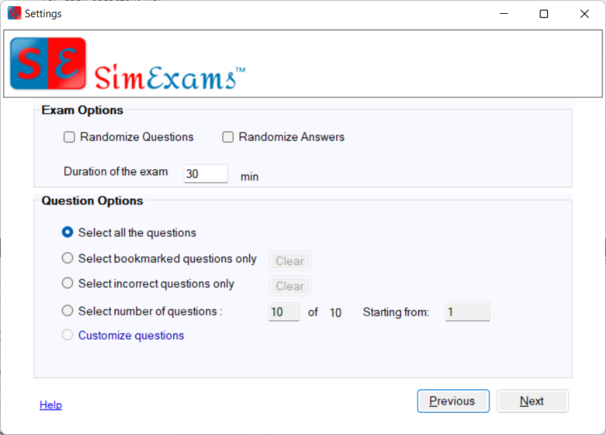
Various options present for learn mode are :
- Exam Options : Allows to set randomizing of
questions and answer options and learn time.
- Randomize Questions : Check (select) this
option to present candidate with questions in
a randomized order.
- Randomize Answers : Check (select) this
option to present answer options for each question
in randomized order.
- Duration of exams : Enter the time allowed
to take exam in minutes. Once exam time is over
exam will end and results will be shown.
- Question Options : Allows to select the type
of questions that must be shown to candidate.
- Select all the questions : Select this option
if you want to view all the questions available
at once.
- Select bookmarked questions only : Select
this option to view Only the questions that
were bookmarked earlier. This can be useful
to revisit specific set of questions. "Clear"
button will remove bookmarking from all the
questions.
- Select incorrect questions only : Select
this option to view Only the questions which
were answered incorrectly in the last exam taken.
"Clear" button will remove incorrect flag from
all the questions.
- Select number of questions : This option
can be used to select a specific set of question
by entering required number of questions and
starting question number.
- Customize questions :This feature allows
instructor to select specific categories (topics)
for a exam. All the questions in the exam will
appear only from selected categories. Discussed
in detail under
Customize Questions section.
2. Exam Mode : To view questions
in exam mode select "Exam Mode" under "Select Exam Mode"
section. This will enable various options provided for
exam mode as shown below.
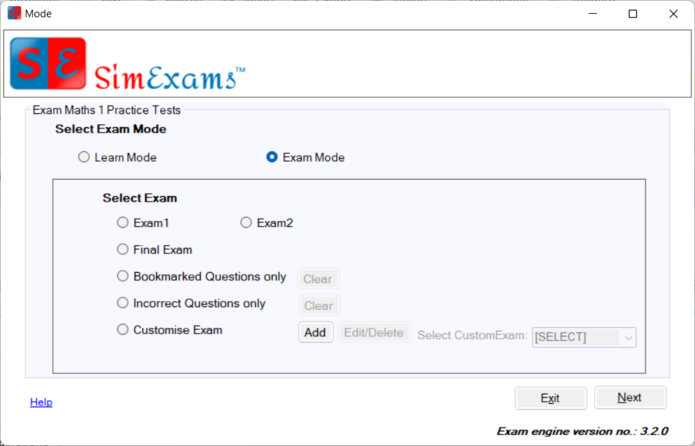
Various options present for exam mode are :
- Selecting Exam Number : In exam mode based on
configuration set by author (can be viewed and changed
under Exam Configuration) all question present in
database will be divided in to unique set each of
which will be listed as a separate exam. You can
select on specific set by selecting Exam1, Exam2,
Exam3..Each exam will show randomized questions
from selected set.
- Final Exam : If this option is selected candidate
will be presented with a randomized set of questions
from entire question database.
- Select bookmarked questions only : Select this
option to view Only the questions that were bookmarked
earlier. This can be used full revisit specific
set of questions. "Clear" button will remove bookmarking
from all the questions.
- Select incorrect questions only : Select this
option to view Only the questions which were answered
incorrectly in the last exam taken. "Clear" button
will remove incorrect flag from all the questions.
- Customize questions :This feature allows instructor
to select specific categories (topics) for a exam.
All the questions in the exam will appear only from
selected categories. Once the custom exam is created
it cab be selected from dropdown.


